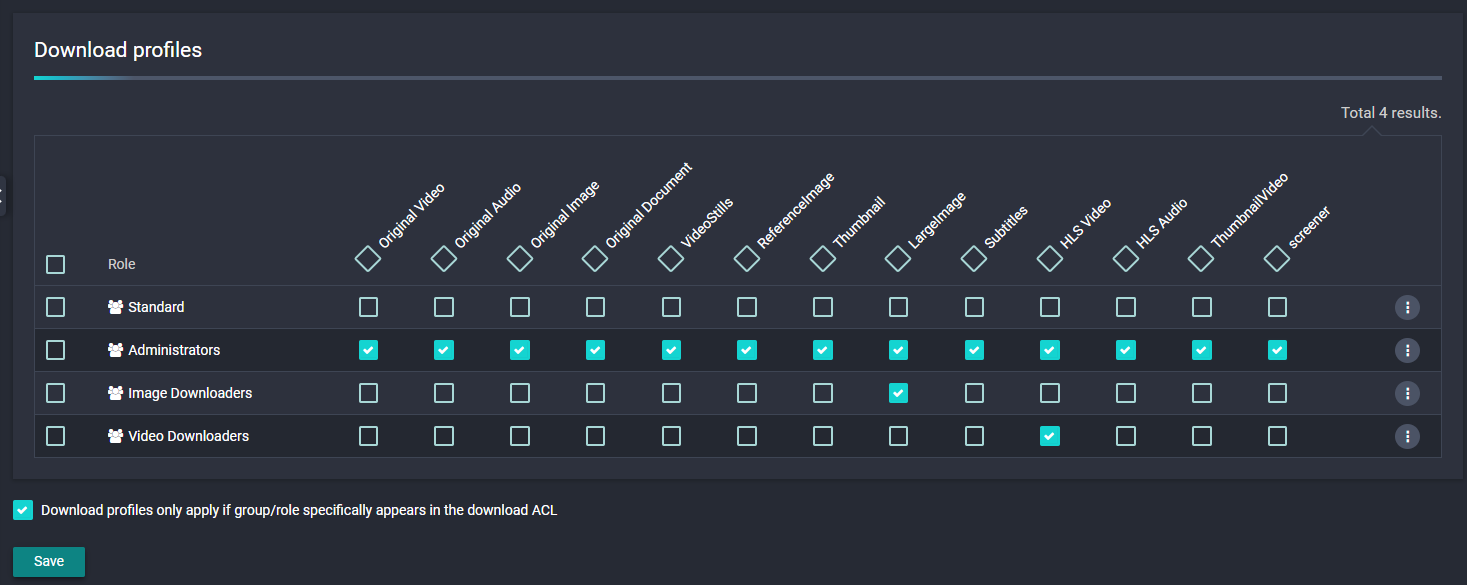
Configuring "Download Profiles" ⚡
Download profiles control offline user access to media, by assigning permissions to certain user/group(s)
Prerequisite knowledge: To make the most of this guide it would help to be familiar with Users, Groups and the Imagen management Interface
Example one: When using Monetisation
If you are using Imagen Monetisation downloads may be restricted to Admin or Internal users, unless you choose to offer 'screener' downloads (low quality, often created by using a watermarked workflow).
Can't see the guide below? Open it in a new tab ↗ (may not work when viewing this page in SharePoint)
If SharePoint blocks the link, copy this address and paste it into a new browser tab:
https://scribehow.com/embed/Allow_web-quality_video_downloads_for_standard_users__9GnQSvq_SHSPFlLWf6v1Lg?as=scrollable&removeLogo=true
Example two: When offering downloads to specific users or groups
Let's say we have a group of users called 'Image Downloders', we can set a 'Download Profile'
to allow downloads of the 'Large Image' rendition
Can't see the guide below? Open it in a new tab ↗ (may not work when viewing this page in SharePoint)
If SharePoint blocks the link, copy this address and paste it into a new browser tab:
https://scribehow.com/embed/Add_a_download_Profile_for_the_Image_Downloaders_group__B5S14br_S8OTx8JGmVxZEA?as=scrollable&removeLogo=true
Now let's say we have a group of users called 'Video Downloders', and we want to set a 'Download Profile' allowing downloads of the 'HLS Video' proxy rendition
Can't see the guide below? Open it in a new tab ↗ (may not work when viewing this page in SharePoint)
If SharePoint blocks the link, copy this address and paste it into a new browser tab:
https://scribehow.com/embed/Add_a_download_Profile_for_the_Video_Downloaders_group__P67ZegBdQ2GjshKJdWBh6Q?as=scrollable&removeLogo=true
On completion our download profiles look like this: