![Favicon.png]](../assets/Favicon-9c0fc0b5ec.png)
👩🎓prerequisite knowledge: To get the most from this guide it will help to be familiar with PowerShell and the Azure portal
Contents
- Imagen Storage Service Server (iSS)
- Imagen Web Server
- Network Security Group (NSG) Configuration
- Bootstrap Imagen Web
- Connecting the Imagen services in Imagen Web
Azure infrastructure
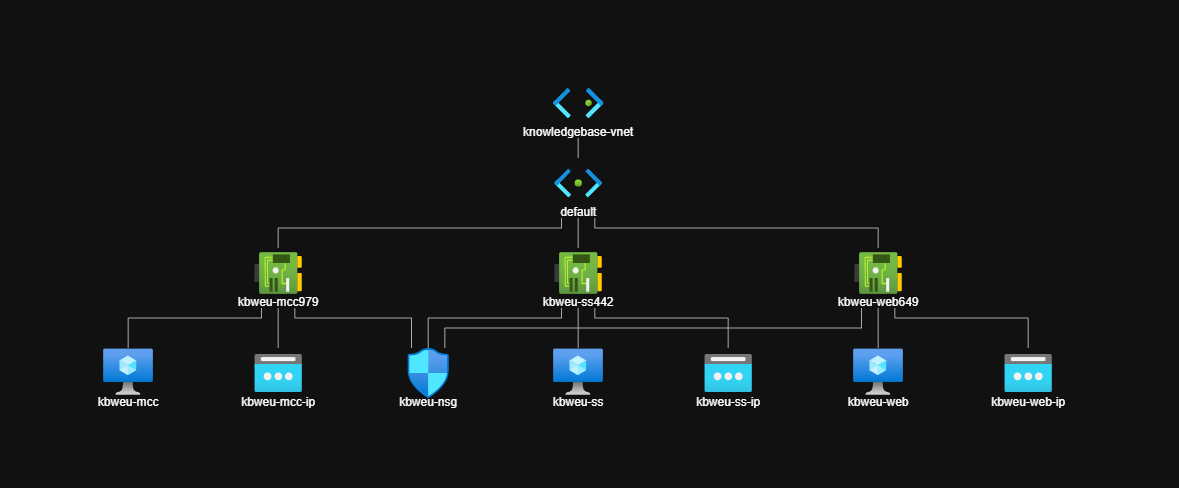
The following infrastructure will be provisioned in Azure to run a basic Imagen Instance. In some cases, a dedicated MySQL server will be deployed where higher levels of site activity are anticipated. A virtual network will be created, connecting the Imagen servers, A network security group will control access to the servers.
Requisite Resources
- Virtual Network (VNET) - Microsoft guide
- Network Security Group (NSG) - Microsoft guide
- Three Windows VMs - Microsoft Guide
- Each with:
- Private Network Interface Card
- Public IP
- Each with:
Network Topology
Storage accounts
The following storage accounts can be provisioned in Azure, AWS, or Wasabi, but must include:
-
- One storage account for Original files (Cool)
- One storage account for Renditions (Hot)
Azure storage accounts can be set to LRS (Locally redundant storage) or GRS (Geographically redundant storage) depending on client availability requirements. Imagen storage replication can be used to speed up content distribution in secondary locations, as well as provide GRS.
💡Pro tip: check out our guides on:
Configuring Azure storage
📕Configuring Amazon S3 storage
Configuring Wasabi storage
Imagen Media Control Centre Server (iMCC)
Initial deployment:
This deployment guide will make use of PowerShell scripts to download all necessary installers and configure the windows firewall. Follow the guide below to prepare this server for deployment.
The scripts are available here
Instructions
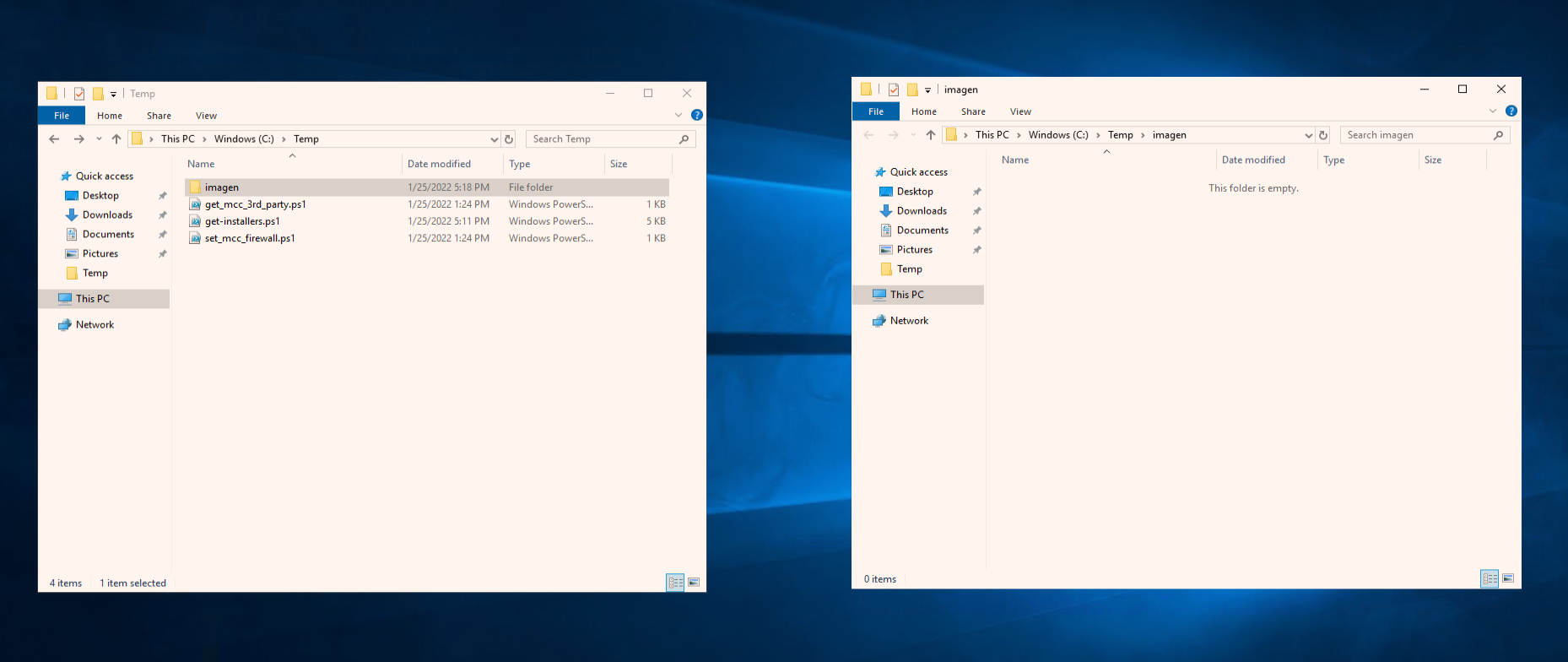
- Create new folders
- C:\\Temp
- C;\\Temp\Imagen
- Add the following three scripts (downloaded above) to the temp folder:
- get_mcc_3rd_party.ps1
- get-installers.ps1
- set_mcc_firewall.ps1
The image below shows the correct state to begin your deployment
Now your VM is ready for installation follow this guide to install your Imagen iMCC Server
Your Imagen MCC Server should now be configured ready for connection at a later stage in this guide
Imagen Storage Service Server (iSS)
Initial deployment:
This deployment guide will make use of a PowerShell script to download the necessary installer.
Instructions
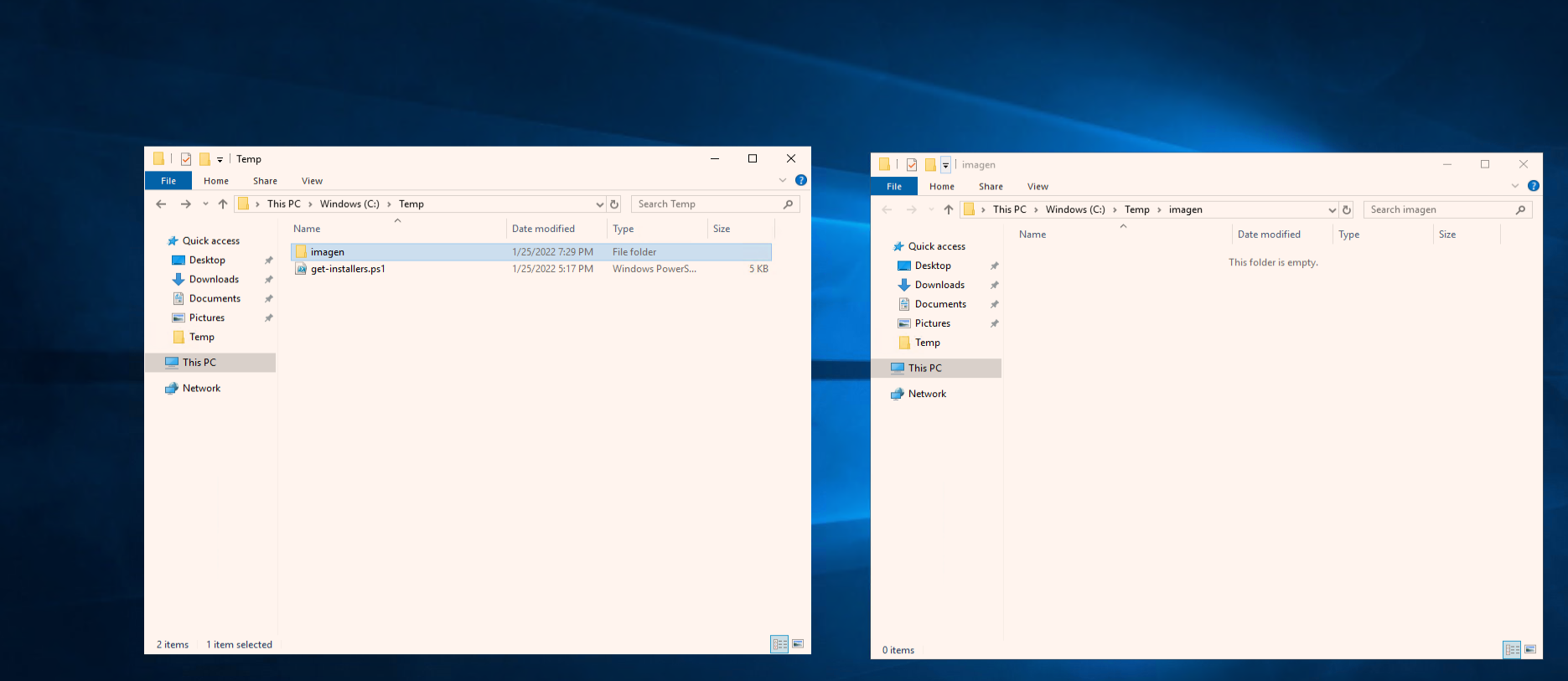
- On deployment, create a new folder at C://Temp
- Add the following script (download here) to the Temp folder:
- get-installers.ps1
- Add an empty folder named "imagen" to hold the installers downloaded by the powershell script
Now your VM is ready for installation follow this guide to install your Imagen SS Server
Your Imagen SS Server should now be configured ready for connection at a later stage in this guide
Imagen Web Server
Initial deployment:
This deployment guide will make use of a PowerShell script to download the necessary installer.
Instructions
- On deployment, create a new folder at C://Temp
- Add the installer provided by Imagen
- ImagenWeb Setup.msi
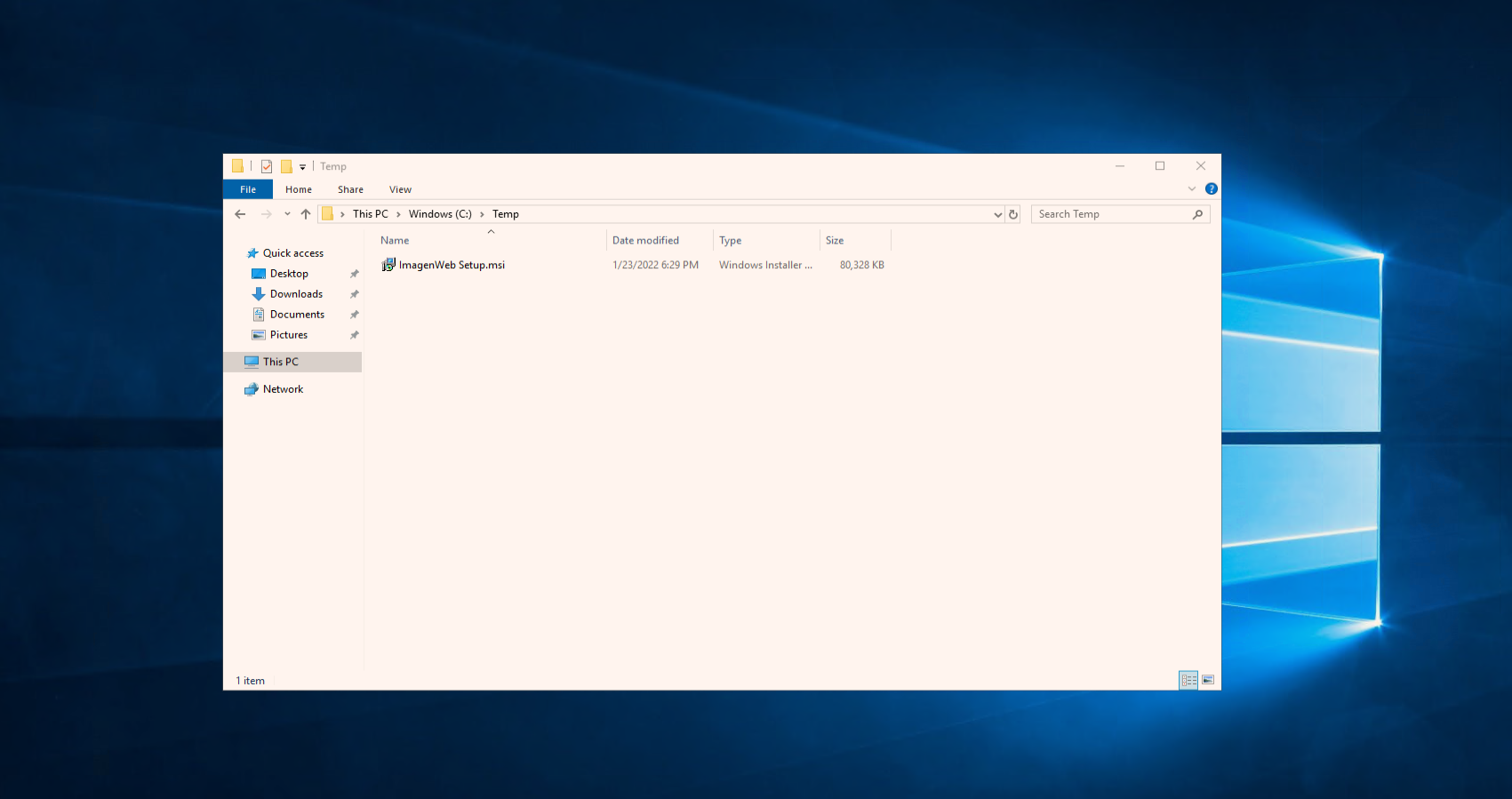
We are now ready to begin installation:
Network Security Group (NSG) Configuration
Let's take a look at our network configuration and take note of the private IP of each machine. We will need this to configure our NSG. It will also help to know the exit IP address from your corporate network.
| Imagen Web Server | 10.0.0.6 | 20.123.168.137 | kbweb.westeurope.cloudapp.azure.com |
| Imagen Media Control Centre | 10.0.0.4 | - | kbweumcc.westeurope.cloudapp.azure.com |
| Imagen Storage Service | 10.0.0.5 | 20.105.200.211 | kbweuss.westeurope.cloudapp.azure.com |
We will now need to configure the network firewall to allow traffic from the web. Imagen web will need ports 80 and 443 to serve the site, and the storage server will require port 443 as a public file server.
Connecting the iMCC and iSS together
This tutorial will show you how to connect the Imagen Media Control Centre and the Imagen Storage Service.
Bootstrap Imagen Web
Now that we have connected the Imagen iMCC and iSS together, we can now start the Imagen web server.
Connecting the Imagen Services To Imagen Web