![Favicon.png]](../assets/Favicon-9c0fc0b5ec.png)
👩🎓Prerequisite Knowledge: To get the most from this tutorial it would help to be familiar with the Azure Portal and to be comfortable modifying PowerShell scripts.
Microsoft PowerShell documentaion link
📝It is also important to understand the Imagen XML format, as the XML file uploaded in this tutorial will be sent to the Imagen API
To add metadata to the new record this tutorial assumes that XML will be used to trigger the watchfolder. If metadata is not important, see alternative considerations
⚠️Note: To complete this tutorial you will need an API key and Bearer token granted by creating an Imagen application
Contents
How it works
- To initiate the watch folder, an XML file is uploaded to Azure Storage, either by manual upload via the Azure Portal or by using the Azure Storage Explorer
If you are only looking to upload media see alternative considerations
Azure portal link Azure storage explorer link - To create a new record, An event trigger will pick up on the new XML file and will send a REST call to the Imagen API
Azure event trigger link
 Imagen API link
 - Media is added to the new record using the media path that has been defined in the XML
Imagen XML link
App Topology

⚠️Note: Byte-Range-Requests must be enabled on the file server that our XML points us to
How it's built
- First, to listen for new events we need to create an Azure storage accountMicrosoft guide link
- To handle the event we then need to create a new function app to handle the eventMicrosoft guide link
- To handle the file upload we create a 'Function' to define the trigger to execute on blob created.
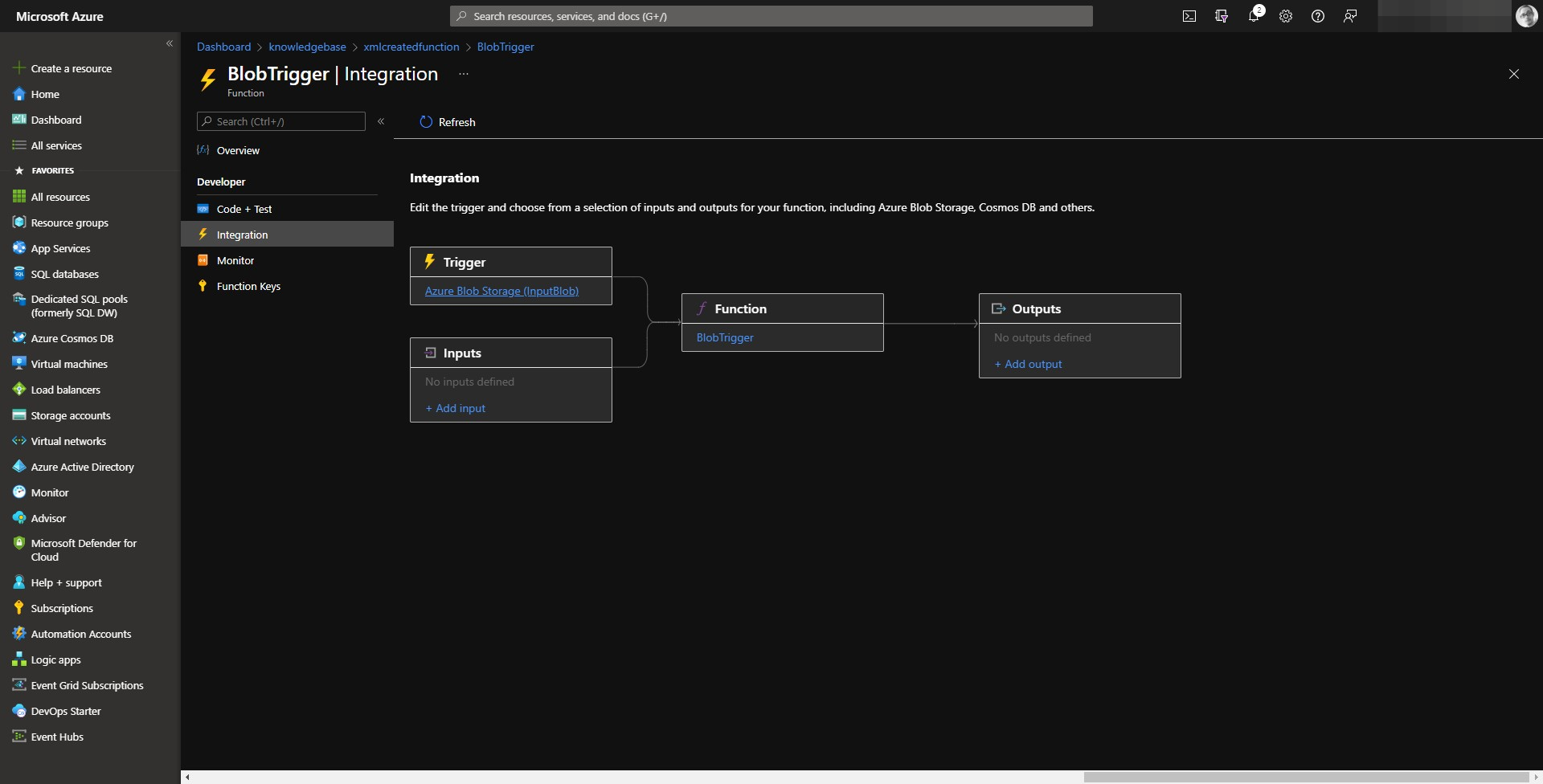
⚡Pro Tip: The Image below shows the integration of our Function App. It's worth noting that the entire Input blob is loaded into memory, allowing us to send the input blob as the body of our REST call. This is fine for XML files, but media is better suited to an event grid trigger.
Media watchfolder link 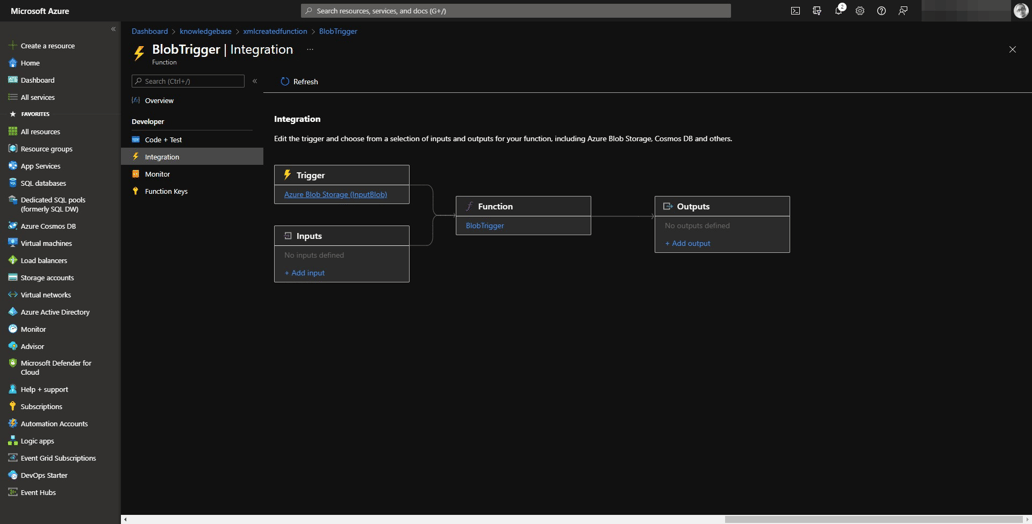
- To add the sample code to your new Azure Function App we will use the browser code editor, where we can view logs as our function executes
Sample code
function.json
{
    "bindings": [
        {
            "name": "InputBlob",
            "type": "blobTrigger",
            "direction": "in",
            "path": "xmlblobcreatedtrigger/{name}",
            "connection": "xmllandingzone_STORAGE"
        }
    ]
}
run.ps1
####################################################
### Input bindings are passed in via param block ###
####################################################
param([byte[]] $InputBlob, $TriggerMetadata)

###############################################################
### Write out the blob name and size to the information log ###
###############################################################
Write-Host "PowerShell Blob trigger function Processed blob! Name: $($TriggerMetadata.Name) Size: $($InputBlob.Length) bytes"

#####################
### GET FILE NAME ###
#####################
$filename = $TriggerMetadata.Name
Write-Host "Blob has been created: $filename"

##################
### Set params ###
##################
$apiKey = '[Your API Key]'
$bearer = '[Your bearer token]'

$headers     = @{"X-Imagen-API-Key"="$apiKey";"Authorization"="Bearer $bearer"}
$contentType = "text/xml;charset=utf-8"
$workflow    = "[Your workfow here]"

######################
### Set media type ###
#############################################
### [Video]. [Image], [Audio], [Document] ###
#############################################
$mediaType   = "[Media type here]"

#######################
### Set REST params ###
#######################
$restparams = @{
    Uri         = "https://[MCC Server].cloudapp.azure.com:83/imcc/v1/import/record/NativeImagenXML?workflow=$workflow"
    Headers     = $headers
    Method      = 'PUT'
    Body        = $InputBlob
    ContentType = "text/xml;charset=utf-8"
    SslProtocol = 'Tls12'
} # end rest params

try{
    $restOutput=Invoke-RestMethod @restparams -skipcertificatecheck
    $restResponse1=$restOutput.Response.DatabaseJob.InnerText
    Write-Host "REST CALL try: $restResponse1"
}catch{
    Write-Host "REST call failed because: $_"
} -
Test the watchfolder
To check that the expected outcome has been achieved we will need to place an XML file in the storage container. We can either do this in the web browser or with the desktop application.
⚡Pro Tip: The sample XML file must match your Imagen record schema or the import attempt will fail
Alternative considerations
- Azure storage
- Media & XML arrival in Azure triggers a blob creation event. Media is ingested from the blob in the landing area. The media is then stored in Azure
- Media arrival in Azure triggers a blob creation event. Media is ingested from the blob in the landing area. The media is then stored in Azure
- AWS storage
- XML arrival in AWS S3 triggers a blob creation event. Media is then stored in AWS
- Media & XML arrival in AWS S3 triggers a blob creation event. Media is ingested from the blob in the landing area. The media is then stored in AWS
- Media arrival in AWS S3 triggers a blob creation event. Media is ingested from the blob in the landing area. The media is then stored in AWS
- Wasabi storage
- XML arrival in Wasabi triggers an S3 blob creation event. Media is stored in Wasabi
- Media & XML arrival in Wasabi triggers an S3 blob creation event. Media is ingested from the blob in the landing area. The media is then stored in Wasabi
- Media arrival in Wasabi triggers an S3 blob creation event. Media is ingested from the blob in the landing area. The media is then stored in Wasabi